Published · 7 min read
Why Is My QR Code Not Working? 13 Fixes That Actually Work
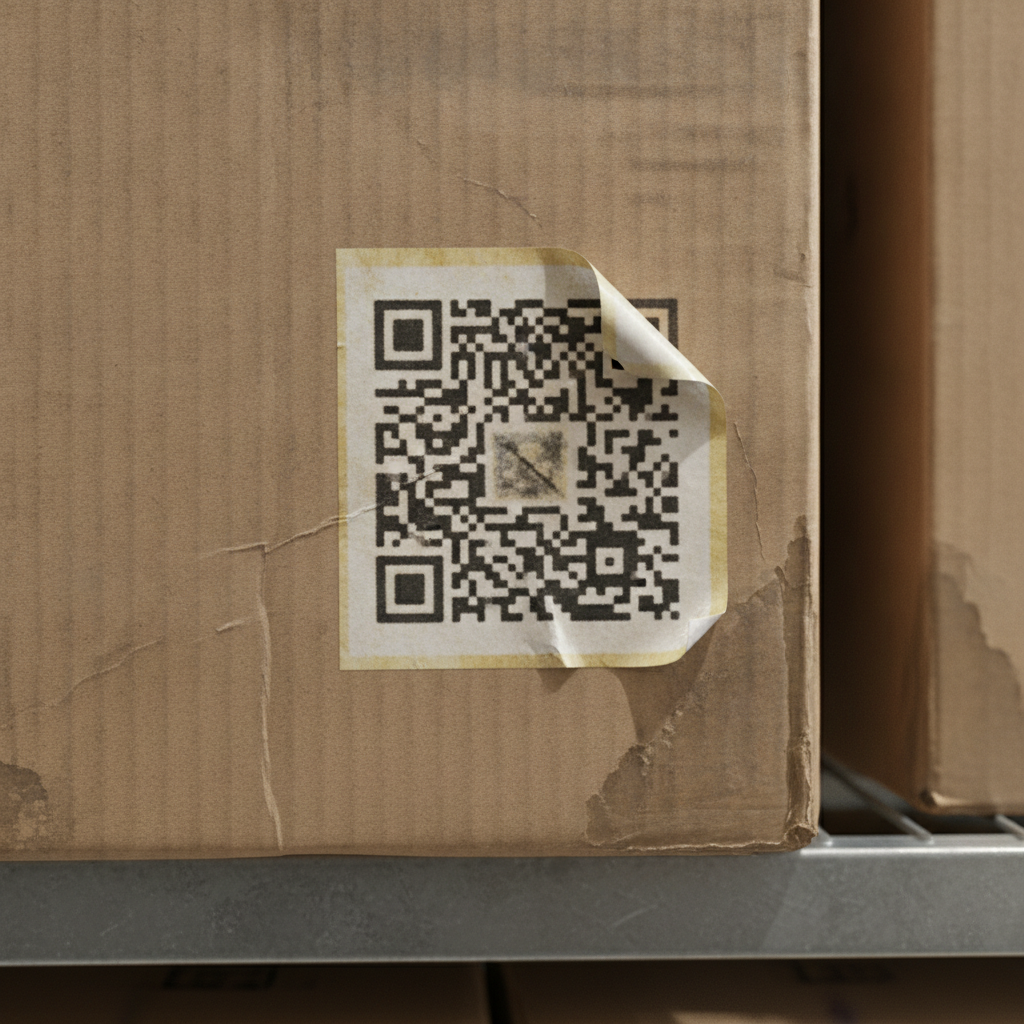
A QR code that won’t scan is almost never random bad luck. It’s one of a short, specific list of causes, split cleanly into two categories: something is wrong with what the code points to, or something is wrong with the code itself. Work through them in that order and you’ll usually find it in under a minute.
Start here: is it the destination, or the code?
Scan the code with your own phone right now. If it scans but takes you somewhere wrong, empty, or to an error page, the code itself is fine — the problem is on the other end. If it doesn’t scan at all, or scans inconsistently, the problem is physical: size, contrast, damage, or print quality.
That one test tells you which half of this list to read first.
If it scans but goes nowhere useful (destination problems)
1. A dynamic code’s subscription or trial has lapsed. This is the single most common cause of a QR code that “used to work.” Dynamic codes store a short link that redirects through a provider’s server — when the plan lapses, the redirect stops resolving, but the printed code looks identical to the day it worked. If you don’t know whether your code is static or dynamic, that’s worth settling first; see do QR codes expire for how to tell the difference and audit codes you’ve already printed.
2. The destination page moved or was deleted. A static code encodes the exact URL you gave it, permanently. If that page’s address changes — a site migration, a CMS restructure, a deleted product listing — the code still resolves correctly, it just points at a 404 now. Fixing the page (a redirect at the same URL, or restoring the content) fixes the code instantly, with no reprint needed.
3. The wrong URL was encoded in the first place. A typo, a stray character pasted in from a tracking link, or http:// instead of https:// where your server doesn’t redirect between them. Scan the code and read the URL your phone shows before it navigates — most phones display it briefly. If it’s wrong, the code needs to be regenerated and reprinted; there’s no way to edit a static code’s contents after printing.
If it won’t scan at all, or scans inconsistently (physical problems)
4. The quiet zone is cropped or covered. Every QR code needs a clear margin — at least 4 modules of blank space on all sides — for a scanner to find the code’s boundary. A tight layout, a background image running behind the code, or a design element bleeding into the margin will break decoding even though the pattern itself is perfectly intact. Full detail on exactly how much margin you need at what size: QR code size guide.
5. The code is too small for its scan distance. The rule of thumb is minimum width equals scan distance divided by ten — a code read from arm’s length needs to be at least a few centimeters wide, one meant to be read from across a room needs to be far larger. A code that’s technically readable at 10 cm away will fail completely at 50 cm.
6. Contrast is too low. Pastel-on-pastel, a mid-tone code on a similarly mid-tone background, or a code sitting over a busy photograph all reduce the tonal difference a scanner depends on. Dark modules on a light background, as close to black-on-white as your design allows, is the safest combination.
7. The code is inverted — light modules on a dark background. Some scanners handle inverted codes fine; enough don’t that it’s not worth the risk on anything printed. If a code isn’t scanning and it’s styled with light-colored modules on dark paper, that’s the first thing to test by switching it back to dark-on-light.
8. The code is physically damaged. Tears, creases, water stains, or scratches across the pattern remove data the scanner needs to reconstruct. Error correction can recover some damage — up to roughly 30% at the highest level — but damage concentrated in one area (a fold running straight through the middle, a corner torn off) can defeat even a high-error-correction code, because it wipes out a finder pattern rather than spreading loss evenly across the grid.
9. Glare or reflection on glossy stock. A phone’s own flash or a bright overhead light reflecting off laminated or varnished paper can wash out entire regions of the code. If a code fails to scan under one light but works fine under another, this is almost always the cause — try tilting the code or the phone slightly to move the reflection off the pattern.
10. A logo is covering too much of the code, or the error correction level is too low for one. A logo overlay is fine at high error correction (level H), kept under roughly 20–25% of the code’s area, with the three corner finder patterns left completely untouched. A logo added at a lower error correction level, or sized larger than that, will cause exactly the scan failures you’d expect from covering a quarter of the data with a picture.
11. Compression artifacts from a low-quality export. A QR code saved as a heavily compressed JPEG, or a small raster image stretched up to print size, introduces soft edges and blocky artifacts exactly where a scanner is measuring sharp transitions between modules. Export as vector (SVG, EPS, PDF) wherever your printer accepts it, or PNG if you must use raster — never JPEG for a code that’s going to print.
If it scans for some people but not others (scanner-side problems)
12. The scanning phone’s camera or app is the limiting factor. Older or budget-tier phone cameras have less capable decoders and less computational help compensating for glare, motion blur, or borderline contrast. A code that scans instantly on a recent flagship can still fail on a four-year-old mid-range phone. Always test on more than one device, including an older one, before committing to a print run.
13. Scanning conditions are working against the code. A code framed at a steep angle, scanned while the person or the code is moving, or read in dim or backlit conditions is harder for any scanner regardless of print quality. This isn’t a flaw in the code — it’s why testing “in the real environment” (the actual lighting, distance, and angle people will actually use) matters more than a clean desk test ever will.
Quick diagnostic checklist
- Scan it yourself — does it resolve anywhere at all?
- If it resolves to the wrong place: check whether it’s a dynamic code with a lapsed plan, or a static code pointing at a moved/deleted page.
- If it doesn’t resolve at all: check size, contrast, quiet zone, physical damage, and logo/error-correction interaction, in that order.
- Test on at least two phones, including an older one, before blaming the code itself.
If none of these thirteen line up with what you’re seeing, the fastest next step is usually a fresh print at a larger size with error correction set to H — it resolves the majority of edge cases even when the exact cause isn’t obvious.
Generate a free, permanent static QR code — no subscription to lapse, no redirect to break. → Create yours with EtchedQR
For everything else — sizing, design, and use-case-specific advice — see QR codes for print: the complete guide.