Published · 13 min read
QR Codes for Print & Business: The Complete Guide
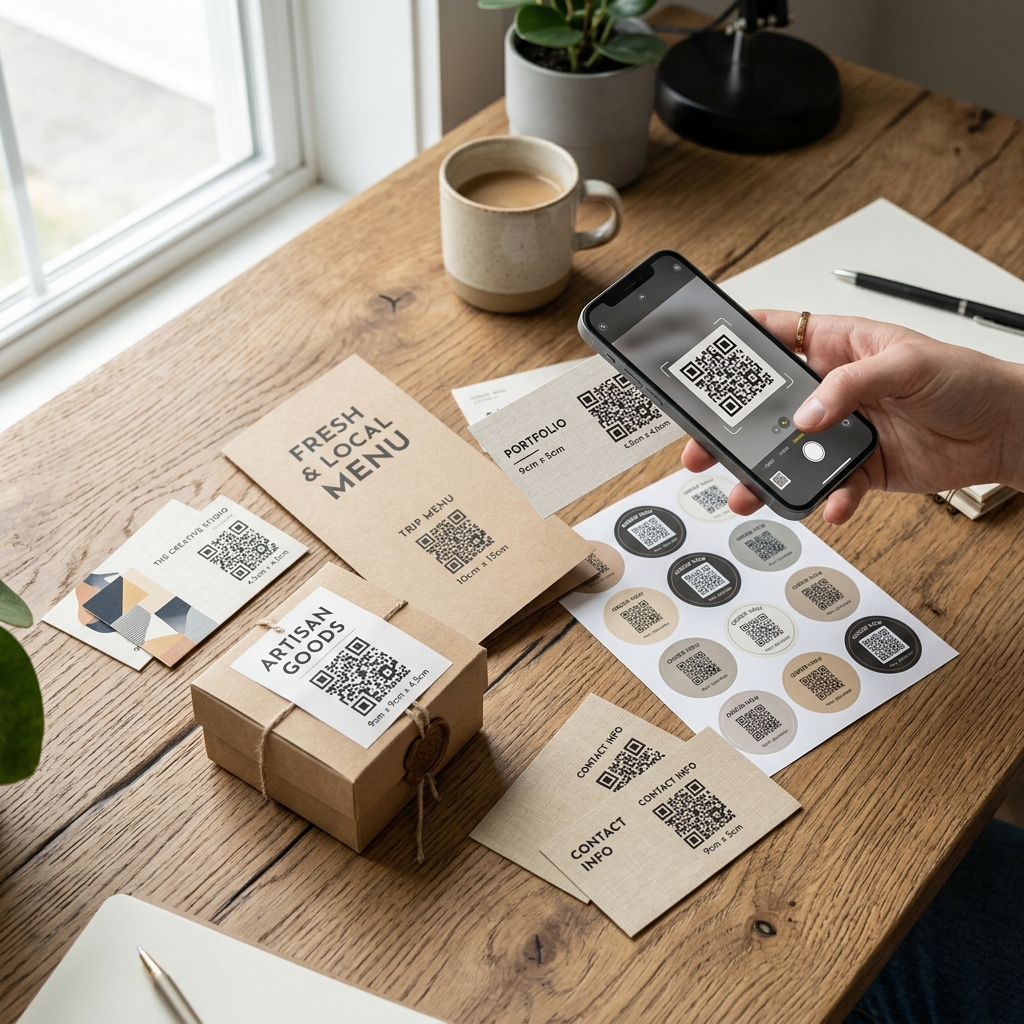
The short version: a QR code is just a grid that stores text. Whether it works for years or breaks in a month depends on three decisions you make before you print it — what kind of code it is, how big you make it, and how you design it. Get those three right and the use case (menu, card, box, label, sign) barely matters. This guide covers all three, then walks through the specific use cases people actually search for.
Everything here links out to a longer, dedicated guide where one exists. Think of this page as the map; the linked posts are the detailed routes.
1. What a QR code actually is — and why static vs dynamic is the first decision
A QR code is a square grid of black-and-white modules that encodes text — usually a URL. Nothing about the format has a clock in it. What determines whether a code “expires” is what kind of text is written into it:
- Static codes encode your actual destination URL directly.
yoursite.com/menuis written into the grid itself. No company sits between the scan and your website, so there’s nothing to shut down, and nothing to pay for. - Dynamic codes encode a short link —
qr.provider.com/a7Bx9— that redirects through the provider’s server. This lets you edit the destination after printing and see scan counts, but the code only works while that provider keeps the redirect alive and your account stays paid.
That difference is the entire reason “free” QR codes from some generators mysteriously stop working after a trial period: it was never really free, it was a subscription to a redirect. We cover exactly what breaks, when, and how to audit codes you’ve already printed in do QR codes expire — read that first if you’ve had a code stop working. If a code isn’t scanning at all rather than pointing somewhere wrong, that’s a different, more physical set of causes — see why is my QR code not working for the full diagnostic list.
The practical rule: choose static for anything printed once and meant to last — menus, packaging, business cards, signage, engraved plates. Choose dynamic only for short campaigns where the destination genuinely isn’t decided yet and you’re comfortable paying for as long as the print exists. If you want the flexibility of an editable destination without the subscription, point a static code at a URL you already control (yoursite.com/menu) and change what that page shows — you get to edit the content without ever renting a redirect. The full decision guide, with a feature-by-feature comparison and cost breakdown, is in static vs dynamic QR codes.
2. Sizing and printing it correctly
The rule of thumb everyone quotes — minimum width equals scan distance divided by ten — is a good starting point and wrong often enough to ruin a print run, because size on its own isn’t the real variable. Module size is: the same code at the same printed width can have modules half as large if your URL is long enough to push the code to a higher version. Smaller modules mean less room for error on real paper, real ink, and real lighting.
Fast reference for common print contexts:
| Where it’s printed | Scan distance | Minimum size |
|---|---|---|
| Business card | 15 cm | 2 × 2 cm |
| Menu or flyer | 30 cm | 3 × 3 cm |
| Poster (A3) | 1 m | 10 × 10 cm |
| Shop window | 3 m | 30 × 30 cm |
Add 20% if your URL is long, your stock is uncoated, or lighting will be poor. The full breakdown — module math, the quiet-zone margin that most designs accidentally crop, DPI by distance, and why glossy or curved surfaces need extra size — is in our complete QR code size guide. For the two tightest common formats, see QR code size for business cards and QR code size for flyers and posters.
3. Designing a QR code that scans reliably
Sizing gets a code to the right physical dimensions. Design determines whether it actually decodes once it’s that size.
Error correction is the setting with the biggest effect on reliability. QR codes carry redundant data so a partly damaged or obscured code still scans:
| Level | Recoverable damage | Use for |
|---|---|---|
| L | ~7% | Screens, controlled digital use |
| M | ~15% | Clean indoor print — menus, cards, brochures |
| Q | ~25% | Packaging, labels, anything handled |
| H | ~30% | Outdoor signage, industrial labels, codes with a logo |
Higher error correction costs you modules at a fixed size — jumping from M to H can push the code to a higher version and shrink each module. EtchedQR’s generator exposes the three levels that matter for print — M, Q, and H; pick H for anything that will be handled, weathered, or carries a logo, and shorten the destination URL if you need the modules back. Full breakdown of the trade-offs: QR code error correction levels explained.
Contrast matters as much as error correction and gets less attention. Dark modules on a light background, ideally close to black on white, is the safest combination — a QR code printed at low contrast (pastel-on-pastel, or a busy background image behind it) fails in exactly the conditions where you can least afford it: bad lighting, an older phone camera, a code someone is scanning quickly while walking past. See color contrast requirements for the actual ratios that scan reliably.
Custom styling — pattern shapes, corner-eye styles, ink and paper color — is safe as long as you don’t erode the module edges or the finder patterns in the three corners. EtchedQR’s tool lets you customize all of these live in the preview, which is the fastest way to confirm a style choice hasn’t quietly made the code harder to read before you commit to a print run.
A note on logos: EtchedQR doesn’t currently support embedding one directly, but adding one separately to a code generated at high error correction (H) is possible, kept under roughly 20–25% of the code’s area, with a small clear margin around it and the three corner finder patterns left untouched. It’s a real design constraint, not just a style preference — cover too much, or use a lower error-correction level with a logo, and decode failures start regardless of how good the logo looks on screen. Full detail: custom QR code design.
4. QR codes by the use case that’s actually in front of you
The fundamentals above apply everywhere, but the failure modes — and the right size and error-correction level — differ by what you’re printing on:
- Restaurant menus and table cards — handled constantly, often laminated, usually read at arm’s length. Size for a 30–40 cm scan distance and use at least M-level error correction.
- Business cards — the smallest common format and the longest-lived: a card sitting in a drawer for years still needs to scan on day one. Size at a strict 2 × 2 cm minimum and don’t compress the URL’s quiet zone to fit a crowded card layout.
- Product packaging — printed in volume, often on curved or glossy surfaces that distort the grid or wash it out under a phone’s flash. Size up and favor Q or H error correction.
- Equipment and asset labels — outdoors, scratched, sometimes laser-etched onto metal rather than printed on paper. This is the use case where H-level error correction earns its keep.
Each of these has its own dedicated guide — exact size tables, material-specific advice, and layout mistakes to avoid for that specific format. See the use cases section on the homepage for a quick summary of what each is built for.
5. QR codes vs other identifier technologies
QR codes aren’t the only way to hand someone a link or an identifier, and they’re not always the right choice.
Barcodes (the classic 1D kind) store far less data — usually just a number, looked up in a database — and need a dedicated scanner or a barcode-specific app in many cases. QR codes store the data directly, need only a phone camera, and can carry a full URL, not just an ID. For anything meant to be scanned by a customer’s own phone, a QR code is almost always the better fit; barcodes remain common in retail and logistics precisely because those systems are already built around database lookups, not because they’re more capable per-code. Full comparison: QR code vs barcode.
NFC tags work by proximity (tap, don’t scan) and can be rewritten after being embedded in a product, sign, or card. They cost more per unit than printing a code and require the reading device to support NFC, which is universal on modern phones but not guaranteed on every device your audience owns. QR codes are cheaper, work with any camera, and are visible — a customer can see there’s something to scan, where an NFC tag is invisible until you know to look for it. Choose NFC when you need a rewritable, tap-based experience and are printing at a scale where the per-unit hardware cost is justified; choose a QR code for nearly everything else, especially anything printed once and meant to last. Full comparison: QR code vs NFC tag.
Quick reference
- What kind: static, unless you specifically need editable destinations or scan analytics and are willing to pay for them indefinitely.
- Size: scan distance ÷ 10, then add 20% for long URLs, uncoated stock, or poor lighting.
- Error correction: M indoors and handled occasionally, Q for packaging and labels, H for outdoors or a logo.
- Contrast: dark modules on a light background, always.
- Test before the run: print at final size on the final stock, on more than one phone, in the real lighting the code will live in.
Generate a free, permanent QR code — pattern, color, and corner-style customization, high-res PNG and SVG export, no account, no expiry. → Create yours with EtchedQR
A note on terminology: QR Code is a registered trademark of Denso Wave Incorporated, which developed the format and publishes it as the open ISO/IEC 18004 standard.